
Ahoy, Math Mateys!
How to Turn a Math Worksheet into a Pirate Game Slide Deck using NotebookLM

Welcome aboard! If you are looking to take a standard, everyday math worksheet and transform it into an exciting, pirate-themed educational game, you are in the perfect place.
Getting kids (or adults!) excited about math can sometimes feel like trying to sail a ship with no wind. But with a little help from AI, we can turn those boring equations into a thrilling treasure hunt. Today, we are going to use NotebookLM by Google to design a custom, game-based learning slide deck.
Let’s set sail and build your custom slide deck!
Step-by-Step Guide: Building Your Pirate Math Game
While NotebookLM doesn’t output a literal .pptx or Google Slides file, it does something even better: it writes the entire slide-by-slide script, game mechanics, and pirate-themed story for you. All you have to do is copy and paste!
Step 1: Gather Your Treasure (Upload Your Worksheet)
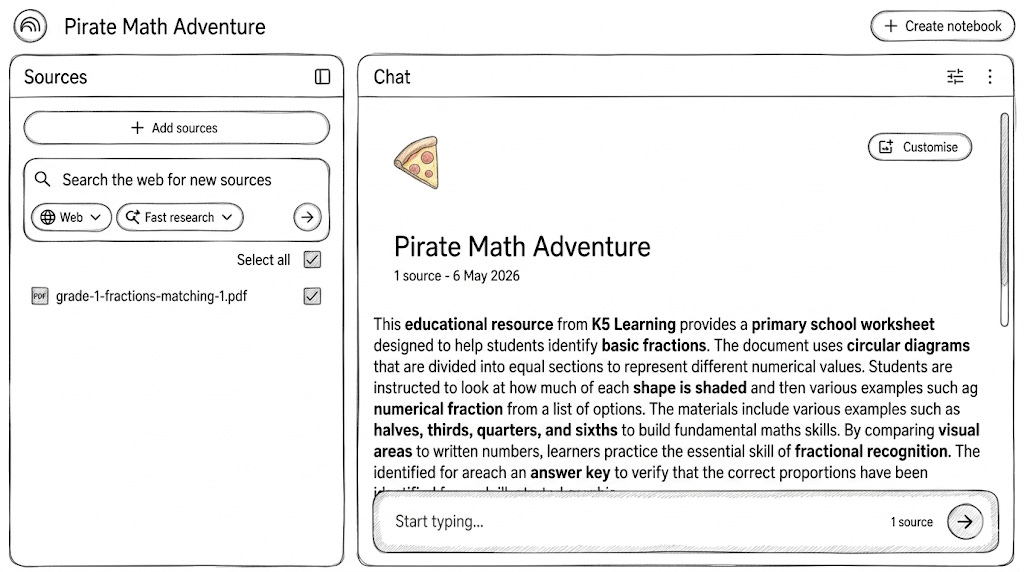
Head over to NotebookLM and sign in with your Google account.
Click on New Notebook to start a fresh project.
You will see an option to Add Source. Upload your math worksheet! (You can upload a PDF, a Google Doc, or even copy and paste the text).
Give your notebook a fun name, like “Pirate Math Adventure.”
Step 2: Talk to Your AI First Mate
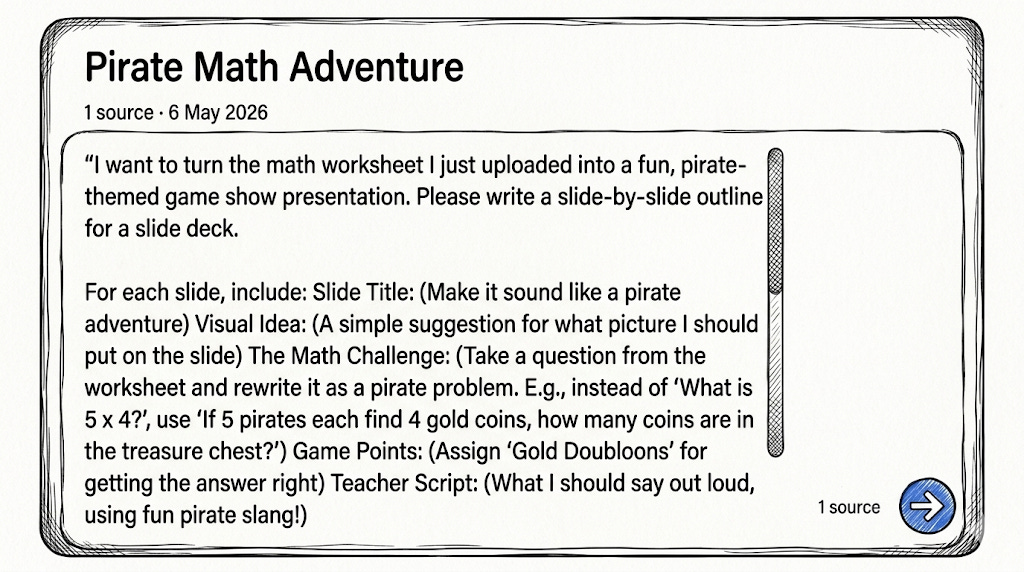
Once your worksheet is uploaded, you’ll see a chat box at the bottom of the screen. This is where the magic happens. You are going to ask NotebookLM to read the worksheet and rewrite it as a game-based slide deck.
Copy and paste this exact prompt into the chat box:
“I want to turn the math worksheet I just uploaded into a fun, pirate-themed game show presentation. Please write a slide-by-slide outline for a slide deck.
For each slide, include: Slide Title: (Make it sound like a pirate adventure) Visual Idea: (A simple suggestion for what picture I should put on the slide) The Math Challenge: (Take a question from the worksheet and rewrite it as a pirate problem. E.g., instead of ‘What is 5 x 4?’, use ‘If 5 pirates each find 4 gold coins, how many coins are in the treasure chest?’) Game Points: (Assign ‘Gold Doubloons’ for getting the answer right) Teacher Script: (What I should say out loud, using fun pirate slang!)
Please give me enough slides to cover the main concepts in the worksheet, plus a Title Slide and a Final Treasure slide.”
Step 3: Create the Slides
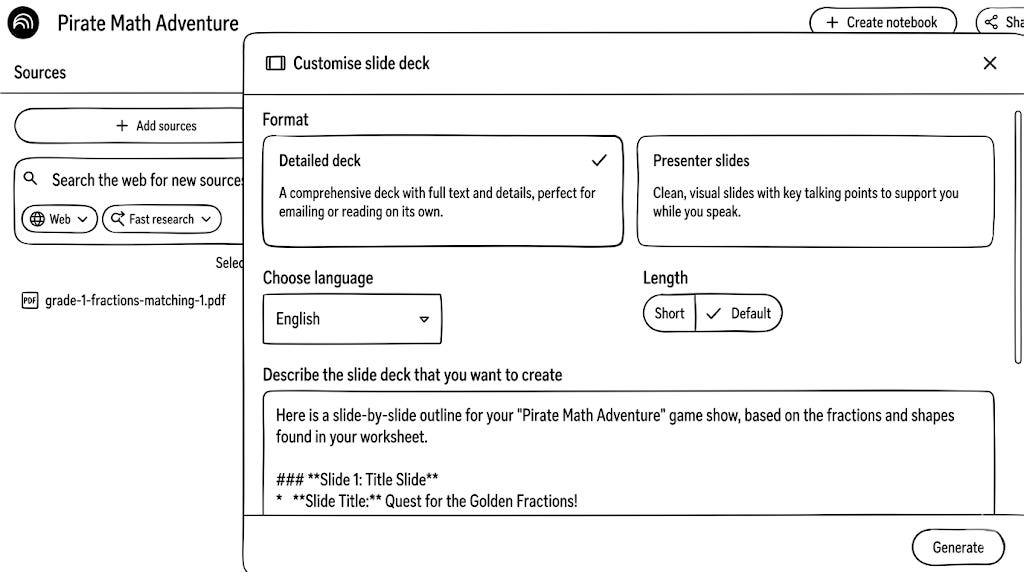
Generate in the custom slide deck or create in Gamma/Claude.
Open up your favorite presentation tool (Google Slides, Canva, or PowerPoint).
Create a blank presentation and choose a pirate-y theme or background.
Simply copy and paste the titles, challenges, and point values from NotebookLM directly onto your slides.
Bonus Prompts for More AI Magic
Since NotebookLM knows your worksheet inside and out, you can ask it to make even more companion materials for your game! Try typing these bonus prompts into the chat box:
1. Create a “Captain’s Cheat Sheet” (Answer Key)
“Please generate a simple, one-page answer key for all the math challenges you just created in the slide deck so I can easily check the students’ answers during the game.”
2. Make it Easier or Harder (Differentiate Instruction)
“Some of my crew are struggling, and some are advanced. Can you take Slide 3 and give me an ‘easier’ version of the math problem, and a ‘harder’ bonus version of the math problem based on the same concept?”
3. Generate a Pirate Glossary
“Can you make a quick glossary of 5 fun pirate terms (like ‘Walk the Plank’ or ‘Shiver me Timbers’) and relate them to the math concepts in this worksheet?”
4. Create an Audio Podcast
NotebookLM has a built-in feature where it can turn your documents into a 2-person podcast! Close the chat, look at your main dashboard, and click the “Generate” button under Audio Overview. The AI will create a fun, 5-minute radio show discussing the math concepts on your worksheet.
You’re Ready to Set Sail!
And just like that, you’ve taken a standard math worksheet and turned it into an immersive, game-based learning experience!
Don’t be afraid to experiment with the chat box.
Phil